.png)
Welcome as a user of minLedelse!
Introduction
minLedelse is a complete solution for systematic registration, processing and follow-up of deviations, incidents and documentation. The solution is developed to provide managers and employees with a user-friendly and effective tool for management and continuous improvement directly in a workspace that the user is already familiar with - Microsoft Teams. The organization ensures full traceability, control and learning.
.png)
How to get started
minLedelse is a system you can use via Teams and to add the app to your mobile, do the following:
-
Open Teams on your mobile
-
Tap the three dots in the bottom right --> More

4. enter "minLedelse"
5. Tap "add App"

3. Add app


Description of Icons in the solution

List: The icon appears under the Process menu option and is used to change the order of processes.

Plus: The icon appears under all menu options in the solution and is used where you need to add something new, whether it's registering an event, task, process or adding a document, etc.

Filter: The icon appears under all menu options in the solution, the icon is used for advanced filtering.

Quality Library: The icon appears where there are documents associated with a process. The number defines how many documents are associated with the given process and if you click on the icon you will be taken directly to the list of documents.

Wrench: The icon appears under all menu options in the solution, the icon is used to configure fields and values.

Chart: Ikonet vises der det er tilknyttede flytskjema til en prosess. Tallet definerer hvor mange flytskjema som er tilknyttet til den gitte prosessen og trykker du på ikonet vil du komme direkte inn i flytskjemaet.

Recycle Bin: Appears under all menu options in the solution. The icon is used to view deleted items.

Pen: This appears when you open an event, a task, a checklist, during Ros analysis, etc. Tapping the pen opens editing options and allows you to edit the given item.

Checklist: The icon appears where there are associated checklists, a checklist can be linked to processes, deviations and incidents, ROS analysis and more. The number defines how many checklists are linked to the given process/incident and if you click on the icon you will go directly to the list of checklists and can use the checklists you are going to use.
.png)
Column: The icon shows where there are associated events, an event can be linked to processes, checklists, ROS analysis, etc. The number defines how many events are associated and if you click on the icon you will go directly to the list of all registered events and you can process the events further.

How to use myManagement?
When you enter the app, you will be taken to your overview screen, where you will have a full overview of your registered events, your tasks, documents awaiting approval, and documents you must confirm that you have read and understood.
1. Registration of new event:
By pressing the + sign you will be taken to register a new event. The + sign has the same function on "Tasks" as well.
2. Select event type
Select the type of event you want to register.
Available options may vary from company to company.
Your choice determines which fields and requirements apply to completing the incident.

3. Fill in the fields
Status shows where in the process the event is.
You must fill in the following:
-
Title: Give the discrepancy a short and precise description.
-
Department: Select which department the discrepancy belongs to.
-
Location: Specify where the incident took place.
-
Category: Select the correct category for the discrepancy.
-
Project: Specify whether the incident is related to a project.
-
Description: Explain what happened, what you did, and who discovered the incident.
-
Importance: Indicate how serious the incident is.
-
Then press "New incident" to save the discrepancy.


Menu options in myManagement
In the menu you will find the following tabs:
-
Home
-
Processes
-
Quality
-
Events
-
Tasks
-
Checklist
-
Risk Assessments
-
Charts
Each tab provides access to its respective functions and overviews.

Processes
Get an overview of your processes, and click the arrow on the right to see details for each process. To build processes, click the + sign


When creating a new process:
Give the process a name, add a description, and fill in details such as objectives, inputs, output requirements, and risks. You can also define roles: process owner, responsible party, executor, as well as those who can be consulted and informed. Then click “New Process” and the process will be created.
If you need additional or different types of fields than those available here, these can also be added or removed.
How to change fields:
You return to the Processes menu, you press the wrench marked with a red circle in the image below. This will take you to the configuration page.

Configuration: Please note that changes here should be made with caution. We recommend consulting with a consultant before proceeding.
You go to the field called "Fields" . Here you have the option to add new fields or change/delete existing fields. Be careful when making changes here, it may be recommended to contact a consultant before making changes here.

Quality
In the Quality menu option you will find all quality documents.
Here you will get an overview of:
-
Status of each document
-
Date of last change
-
Revision history
-
Document owner
Features:
-
Use the search function to find specific documents
-
Use filters to narrow your search as needed.
-
Add a new document by pressing the + icon (marked with a red square in the image below)

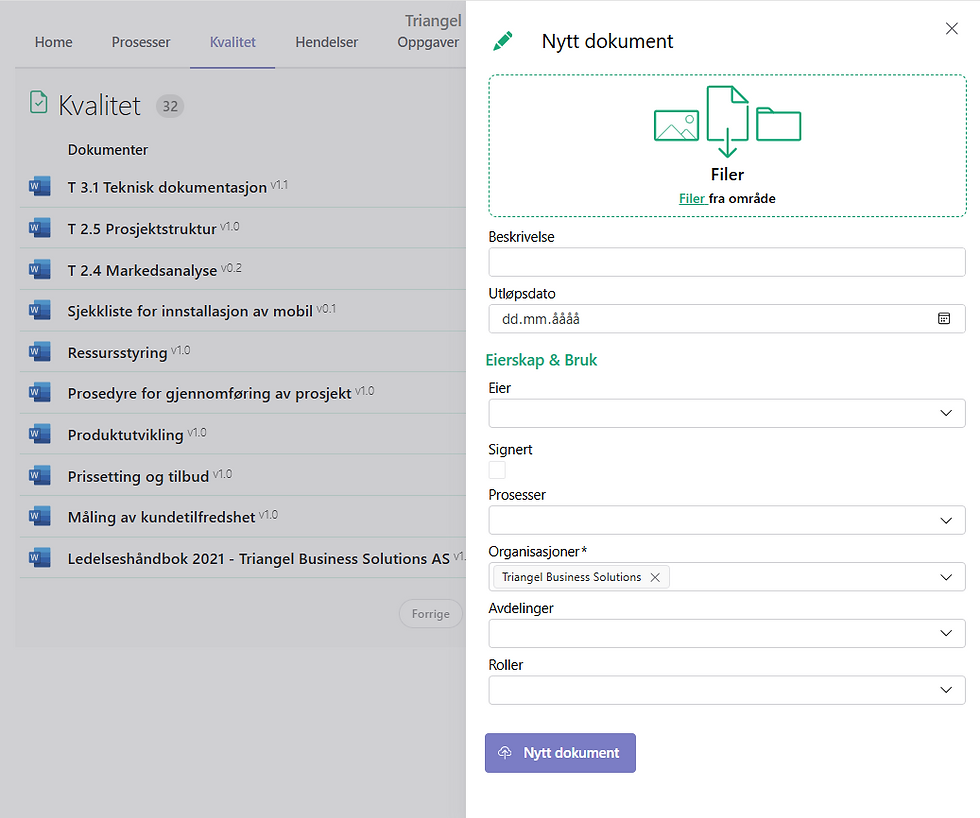
Add new documents:
You can upload documents using drag & drop or select files from your library.
When creating a document, you must:
-
Enter a description
-
Setting an expiration date
-
Define document owner
-
(Optional) sign the document upon submission
-
Specify which process(es) the document belongs to
-
Select organization (if several exist in the system)
-
Associate the document with the correct department and role
Completion:
-
Tap New Document to create the document.
-
The document can then be submitted to a possible approval flow in the solution.
Signing a document:
To sign a document, click the box under Signature (marked with a red square in the image below). When you sign, the document's status is automatically updated.

Status:
Click on the document's status to:
-
send the document for approval
-
view file history
-
see version control

File history
When you send the document for approval, the recipient will see the document displayed on their front page with a message that it needs to be approved.

See who signed the document:
Here you have an overview of everyone who has signed the document.

See:
Summarizes essential information related to the document.

Events
In the Events menu option, you will find all registered events with their associated status and audit history.
Here you will get an overview of:
-
Status of each event
-
What type of event is recorded?
-
Ability to open and review a given incident
Features:
-
Use the search function to find specific events
-
Use advanced filter if necessary
-
Create new events via the + icon (marked with a red circle in the image below)

Handling an incident:
Click on the selected event then go to the "pen", you will then be able to edit the event.

Continuing processing an incident:
-
Correct the status of the incident.
-
Depending on which status you select, different fields will appear.
-
As shown in the image below, you will see specific fields based on the selected status.
-
-
Fill in the required information in the available fields.
-
Press Update HSEQ Record to save the changes.
The incident is then updated with the new status and possibly forwarded to the next resource for further processing.


Tasks
In the Tasks menu option, you will find all registered tasks with their associated status and revision history.
Here you will get an overview of:
-
Who is responsible for the task?
-
Task status
-
Additional information about each task (by clicking in)
-
Ability to edit existing tasks
Features:
-
Use the search function to find specific tasks
-
Use advanced filter if necessary
-
Create new tasks via the + icon (marked with a red circle in the image below)


Handling an incident:
-
Click on the relevant task.
-
Tap the pen icon.
-
You will now have the option to edit the event.
Continue processing a Task:
When you open a task for further processing, you can:
-
Correct the task by updating the fields.
-
Enter a title and a description.
-
Check that the task is completed.
-
Describe what you did to solve the problem.
-
(Optional) Link the task to an incident via the HSEQ Object field.
-
Press Update task to save the changes.
The task will then be updated with the new status.

Related:
Under related/relation you will see all associated documents, checklists and ROS analyses that are linked to the given task.
Checklist
In the Checklist menu option you will find all available checklists.
Here you will get an overview of:
-
Which processes does the checklist belong to?
-
How many checklists are completed for each individual
-
Pre-filled checklists (can be opened directly)
Features:
-
You can also find checklists under the Process menu, so you can retrieve checklists directly from the process you are working on.
-
Users can edit existing checklists or create brand new ones.
Creating checklists:
-
Top + icon (red circle) → Create a brand new checklist
-
Bottom + icon (oval red circle) → Use a pre-defined checklist
Search and filtering:
You can use the search function to find specific checklists, or use advanced filters as needed.
Features coming:
It will soon be possible to download each checklist as a PDF.
When you assign a checklist to a user, they will see this on their "Home" page.

Fill out the checklist:
-
Press the + icon as shown in the image above (Create Checklist Record).
-
Fill in the following:
-
Title
-
Process (link the checklist to the correct process)
-
User (assign checklist to the correct person)
-
Comment (optional)
-
Date of execution
-
The fields in the checklist itself
-
-
Check Completed when the checklist is complete.
-
Press Update checklist record to save.

Risk and opportunity assessment
In the menu option Risk and opportunity assessment you will find all registered risks and opportunities, along with associated processes.
Here you will get an overview of:
-
Risks and opportunities identified within the organization
-
Associated processes for each risk or opportunity
-
Assessing the level of risk or opportunity, so you can quickly see which areas require attention
Features:
-
Click on a risk or opportunity to view details, edit assessment, or update actions
-
Use the search function to find specific risks or opportunities
-
Use filters to sort by process, risk level or opportunity level
-
Create new risks or opportunities via the + icon
This tool provides a comprehensive overview that makes it easier to prioritize measures, follow up on high risks, and utilize identified opportunities effectively.


Flowchart
In the Flowchart menu option, you will find all created flowcharts that are associated with a process.
Here you will get an overview of:
-
Which flowcharts apply to the process in question
-
A description of the flow
Features:
-
Click on a flowchart to view details or edit it
-
Create new flowcharts via the + icon
-
Use the search function or filter to find specific flowcharts
This provides an easy way to visualize processes and ensure that everyone is following the correct workflow.


Settings
Click on the gear icon to go to Settings. This is a function that only Administrators at your customer have access to. Special training will be provided to those in this role.
In Settings you can manage:
-
Creating users
-
Organization
-
Departments
-
Roles
-
Access control
-
Signatures
-
Notification rules
-
Locations
-
Translations
-
Risk
-
Checklist items
This gives the administrator full control over the system's structure, access, and settings.

